Table of Contents
This tutorial describes the first steps in the reconstruction of the debate about software patents. First, a new Argunet debate with an empty argument map is created on the local computer. Then, the arguments and their attack and support relations are sketched on the argument map. For information on creating an online debate on an Argunet server, see Chapter 4, Visualization of complex argumentations .
Note
Local debates are saved locally as argunet files with the 'arg' extension. Opened local debates are saved automatically when the debate is closed. You can create a backup of the debate at any time using Save copy of debate .
An Argunet debate is created using a wizard.
- Start Argunet.
-
Click the
Start a New Debate
button
 .
.
-
Select the option
Local debates
 , and then click
Next
.
, and then click
Next
.
- Choose a location and a filename for the new debate by selecting Browse .
-
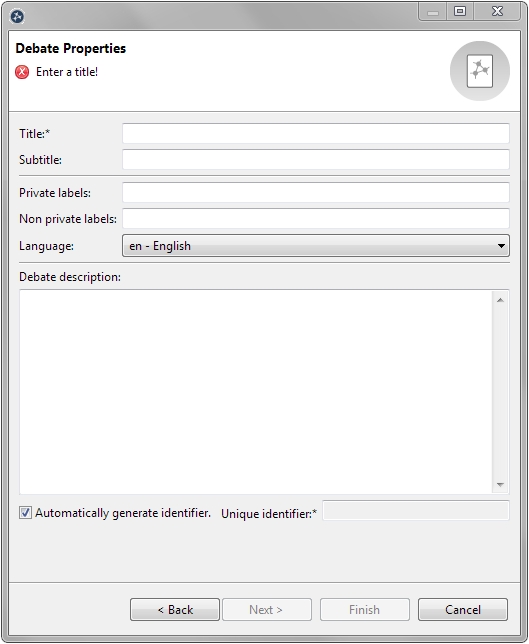
Choose a title (here: “Software patents”), an optional subtitle
and a description for the new debate. You can select the debates
language under
Language
.
- Click Finish to close the wizard.
Argunet now automatically adds an empty argument map "Untitled" to the new debate and opens it together with the debate manager .
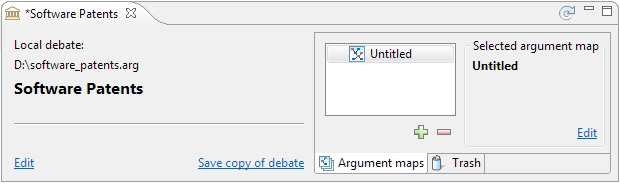
The debate manager for the current debate (in this case "Software patents") appears below the toolbar. The new argument map view appears below the debate manager on the right-hand side.