Table of Contents
The reconstruction of a complex argumentation can quickly become large and confusing. This tutorial will show you how to create clearly structured argument maps. You will learn to colour code arguments using "families", to create groups, to group arguments, and to use multiple argument maps in a debate.
Argunet provides a range of map tools that enable you to create debates that are clearly arranged and visually pleasing. The map tools window also contains a minimap displaying a miniature version of the active argument map, allowing for easy navigation. The map tools are usually located to the right of the current argument map.
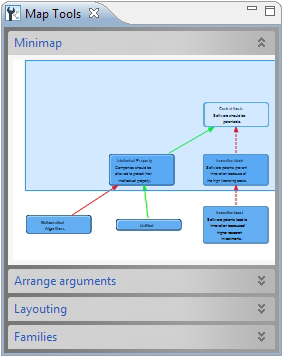
Different map tools, such the arrange-arguments-tools, the layouting-tool and argument families, are introduced below.
Note
Should the map tools window not be visible, it can be displayed by clicking the Show map tools button in the Window-section of the title bar.The more arguments an argument map contains, the more difficult it becomes to arrange them clearly. To simplify this task, the map tools contain tools for arranging arguments.
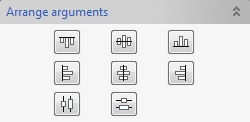
In our example, we will centre two arguments on a vertical axis.
- Select the arguments "Intellectual property" and "Innovation block" by pressing SHIFT and clicking each argument once.
- Open the map tools, if they are not open yet.
-
In the
Arrange arguments
tools, click the
Centre on vertical axis
button
 .
.
The arguments are now centred on a vertical axis on the argument map.
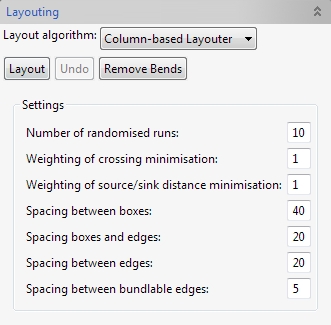
In addition to the arrange-arguments-tools there is an additional layouting-tool. The layouting-tool allows you to clearly arrange whole argument maps automatically.
- Open the map tools if they are not open yet.
-
You can adjust various settings in the settings area of
the
layouting-tool.
- Click the Layout button.
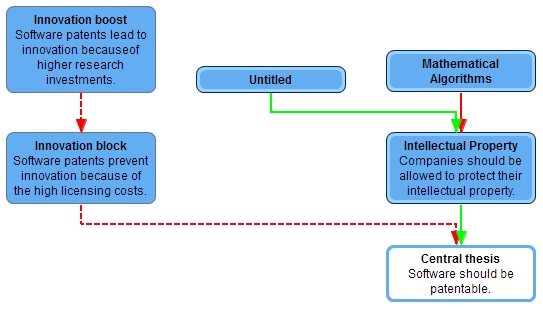
The arguments are now clearly arranged on the argument map.
Note
Argunet comes with the “Column-based Layouter” as a present layout algorithm. Additional layout algorithms can be downloaded as plugins. The layout algorithm can be changed using the drop-down menu “Layoutalgorithmus” in the “Layouting”-tool.- Open the map tools if they are not open yet.
- Click the Undo -button in the “Layouting” area.
The arrangement of the argument map have now been changed back to the state before the “Layouting”-tool was used the last time.
Caution
You can only use the Undo option of the “Layouting”-tool until you exit argunet and the debate is saved.Common properties between arguments can be visualized using so-called "families". Families consist of a family colour and a family name. Typical uses are, for example, the labelling of all arguments belonging to an author or a position, of all arguments of a certain type, or of arguments containing a certain premiss.
Note
The assignment of families affects only one argument map, so that different families can be assigned to an argument in different argument maps (for example, the "software patent supporter" family in one argument map and the "argument from analogy" family in the other argument map). However, the same families are available in all argument maps of a debate.In our example, we will use families to distinguish the different positions in the debate about software patents. We will create two families, the family of the supporters' arguments and the family of the opponents' arguments.
By default, all arguments belong to the family whose colour is blue. Using the map tools , you can check which colour belongs to which family. The map tools are usually located to the left of the argument map.
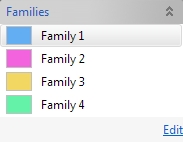
So far, the colours have no specific meanings. The blue family is simply called "Family 1" . The first step will be to change the name of the family to "Supporters" .
- Open the map tools, if they are not open yet. The map tools show four standard families, which are simply called Family 1 , Family 2 , Family 3 and Family 4 so far.
-
Click the
Edit
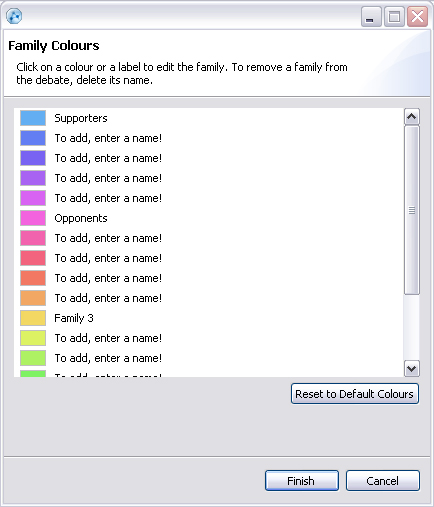
button below the family view. The family manager opens.
There are
18 different families available. A family is activated for
use
by
changing its name.
- Click on the name Family 1 of the blue family.
- Enter Supporters .
- Click on the small coloured box to the left of the name to change the family's colour.
- Click the Finish button to save the changes.
The changes will appear in the map tools automatically. Furthermore, the arguments in the argument map will change colour when the colour of the family has changed.
We will now assign a new family to the arguments of the software patent opponents.
Repeat the steps described above for the second family in the map tool ( Family 2 ). This time, enter Opponents .
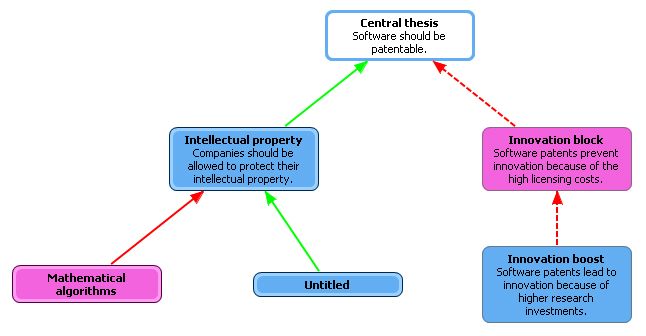
- Select the arguments of the software patent opponents on the argument map. These are the arguments that attack the central thesis directly, and also the arguments that attack the supporters' arguments. So, for example, "Mathematical algorithms" and "Innovation block" . To select more than one argument at the same time, press SHIFT and click on each argument once.
- In the map tools, click on the "Opponents" family (the one you have just created).
The arguments will change colour accordingly.
If you need more than four families, you can add new families to the map tools.
- Click the Edit button below the family view.
- For one of the families, replace Add a name! with a name for the family.
- Click on the small coloured box to the left of the name to change the family's colour.
- Click the Finish button.
The new family appears in the map tools and can be assigned to arguments.
Families can be removed from the map tools in the same manner.
- Click the Edit button below the family view.
- Delete the name of the family you want to remove.
- Click the Finish button.
The family does not appear in the map tools anymore. However, arguments that have been assigned this family will retain their colour. To change this, you will have to assign them a new family.